
×

Edit

3.1.1.2 Edit
 
 
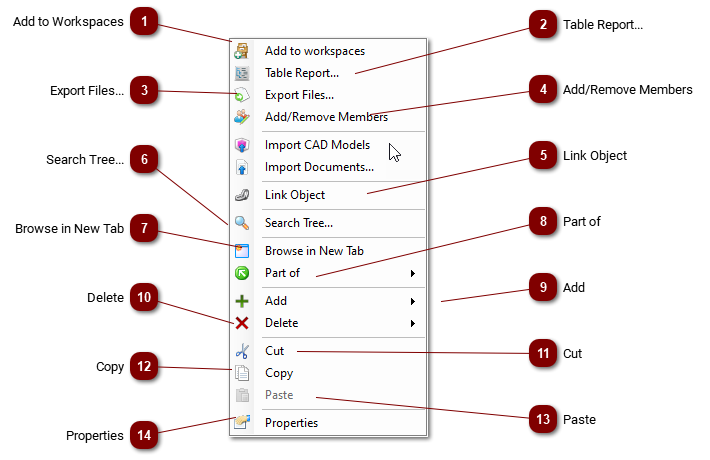
The available commands in the Edit menu are dependent on the selected object class and its status. Only available commands are displayed. This example shows the Edit menu for a Folder. Refer to for a complete list over all available commands.
 
 
1

Add to Workspaces

1. Add to Workspaces
Adds the folder to a workspace
2

Table Report...

Functionality for generating report from a structure. See Table Report
 
3

Export Files...

3. Export Files...
           Functionality for exporting files associated to a structure to a folder in windows explorer. Export Functionality.
4

Add/Remove Members

4. Add/Remove Members
Manage object based authorization, see Object Based Authorization
5

Link Object

5. Link Object
Links a an object to marked object
6

Search Tree...

6. Search Tree...
Search functionality for searching in the tree structure, see Search Tree
7

Browse in New Tab

7. Browse in New Tab
Opens the selected object in a new tab
8

Part of

8. Part of
Opens a part of list in a new tab
9

Add

Adds a new object linked to the marked object
 
10

Delete

The marked object and its files are deleted
 
11

Cut

11. Cut
Cut out the object from it's location
12

Copy

12. Copy
Copying a document
13

Paste

13. Paste
Pastes the latest copying object to a new location
14

Properties

14. Properties
A new window with properties is opening for a selected object